



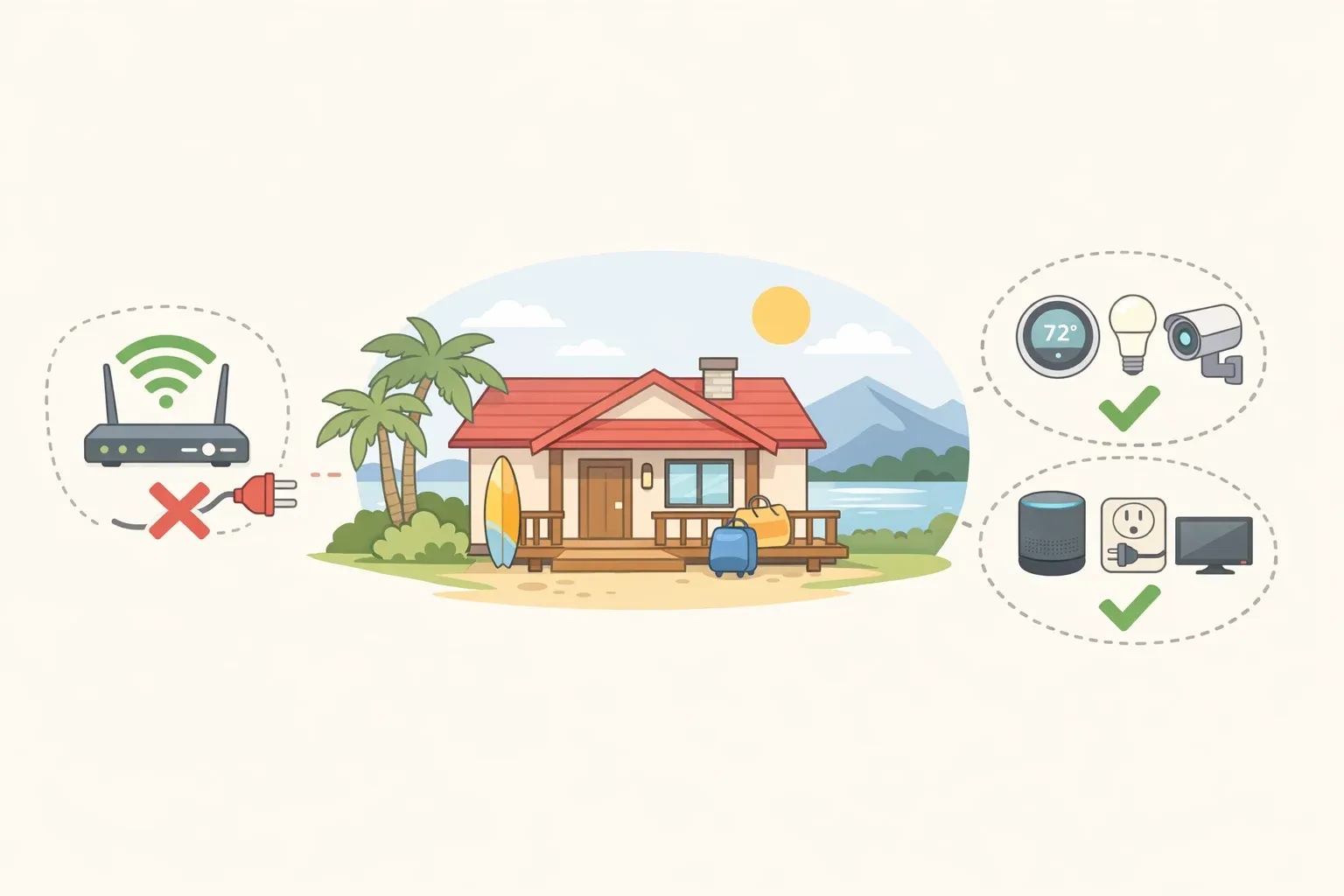
The standard vacation checklist to unplug the coffee maker and turn down the thermostat is fine as far as it goes. It doesn't go far enough anymore.
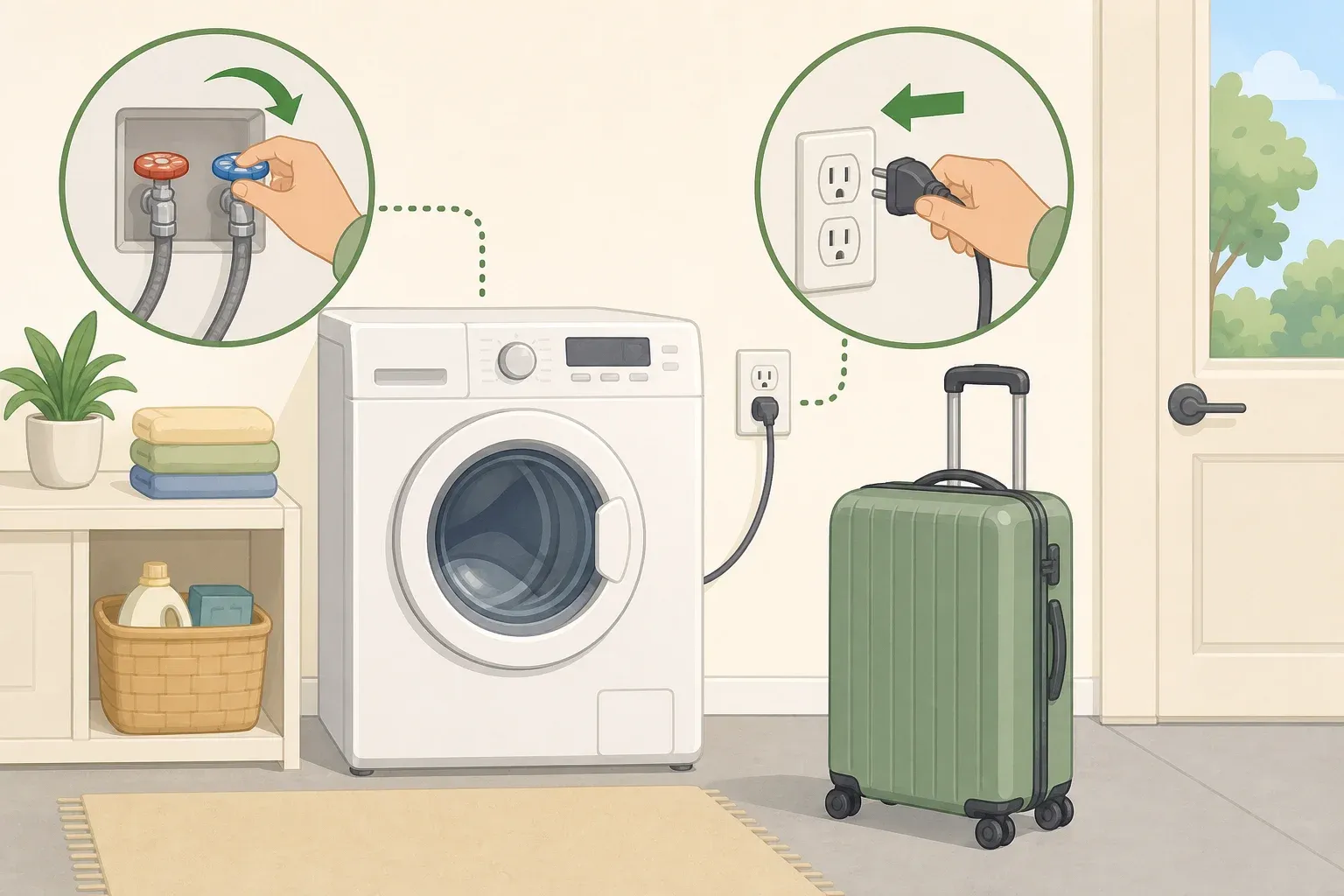
Most homes now contain at least one smart appliance sitting quietly on the home network: a WiFi-enabled washer, a connected range, a smart TV that's never been set up through an app. These are the devices to unplug before leaving for vacation, or at a minimum, to disconnect from your network, and most people haven't thought through which ones actually need attention.
A coffee maker left unplugged has no downside. A smart appliance left connected and unmonitored for two weeks is a different story. It can expose the rest of your network to probing and infiltration, with no one home to notice. Consumer Reports found in late 2024 that only three of nineteen major smart appliance brands tell customers how long software updates will continue, meaning most households have connected devices whose security status is genuinely unknown.
This guide separates vacation prep into three distinct jobs: unplug what has no purpose while you're gone, disable WiFi on smart appliances you don't use remotely, and segment the connected devices that genuinely need to stay online. Each step is different. Each takes a different amount of time.
By the end, you'll have a clear decision rule for every device in your home, a one-time setup task to complete before your next trip, and a same-day checklist you can run quickly on the way out the door.
What you need before starting: Your router's admin password (usually printed on the router itself) and a few minutes for each stage. The one-time network setup requires the most attention; the departure-day sweep does not.
The decision rule: three categories, one pass through your home
Before touching anything, sort every device into one of three groups. The rest of the steps flow from this sorting.
Group 1 Must stay on: Refrigerators, freezers, sump pumps, smart thermostats you'll adjust remotely, security cameras, smart doorbells, and smart locks. Do not unplug these. Network decisions for this group are covered in Step 1.
Group 2 Smart but not needed remotely: WiFi-enabled washers, dryers, dishwashers, ovens, ranges, and smart TVs you won't access from the road. These should have their WiFi disabled before you leave, not unplugged (most are impractical to physically unplug), but disconnected from the network.
Group 3 No remote value at all: Countertop appliances, hair tools, chargers, game consoles, desktop computers, bedside lamps. These get unplugged. Simple.
The decision rule in plain terms: if it has no value while you're away, unplug it; if it's smart but not needed remotely, disable its WiFi; if it must stay online, move it to a guest network.
The numbers behind Group 2 are striking. Roughly one in five Americans owns a smart appliance, but only 7 percent of Americans who own a large smart appliance actually use its connected features, according to a Consumer Reports survey of 2,084 U.S. adults conducted in October 2022. That's a lot of active WiFi radios providing no practical benefit, sitting unmonitored for days while their owners are traveling.
Gotcha: Some appliances ship with WiFi enabled from the factory. If you've never set one up through an app, check anyway, the radio may be live without your knowing it. Consumer Reports notes that pressing the WiFi button to check is enough to confirm status, and pressing it again disables the radio if it's on.
Step 1: One-time setup: segment your essential devices onto a guest network
Do this before your next trip, not as you're leaving.
The idea: devices that must stay online while you're away — cameras, thermostats, smart locks — get moved to your router's guest network, isolated from your phones, laptops, and computers on the main network. If a smart device on the guest network is compromised, it can't reach the more sensitive devices sitting on your primary network.
Log in to your router's admin panel (typically accessed at 192.168.1.1 or a similar address printed on the router).
Enable the guest network if it isn't already active. Name it something you'll recognize.
Go to the settings for each essential smart device camera, doorbell, thermostat, and switch its WiFi connection from your primary network to the guest network.
Confirm the devices still function as expected.
Consumer Reports explicitly recommends this segmentation for anyone keeping smart devices connected. The concern isn't that attackers will damage the appliance itself. As CR's director of technology policy explains, once an attacker controls a connected appliance, the goal is to probe the broader network and reach more sensitive devices. A guest network makes that jump significantly harder.
If your router doesn't support a guest network: Skip the segmentation and apply Step 2 to every smart appliance in the house, not just the ones you'd skip on a normal day. It's an adequate short-term fallback.
Step 2: Before you leave, disable WiFi on smart appliances you don't use remotely
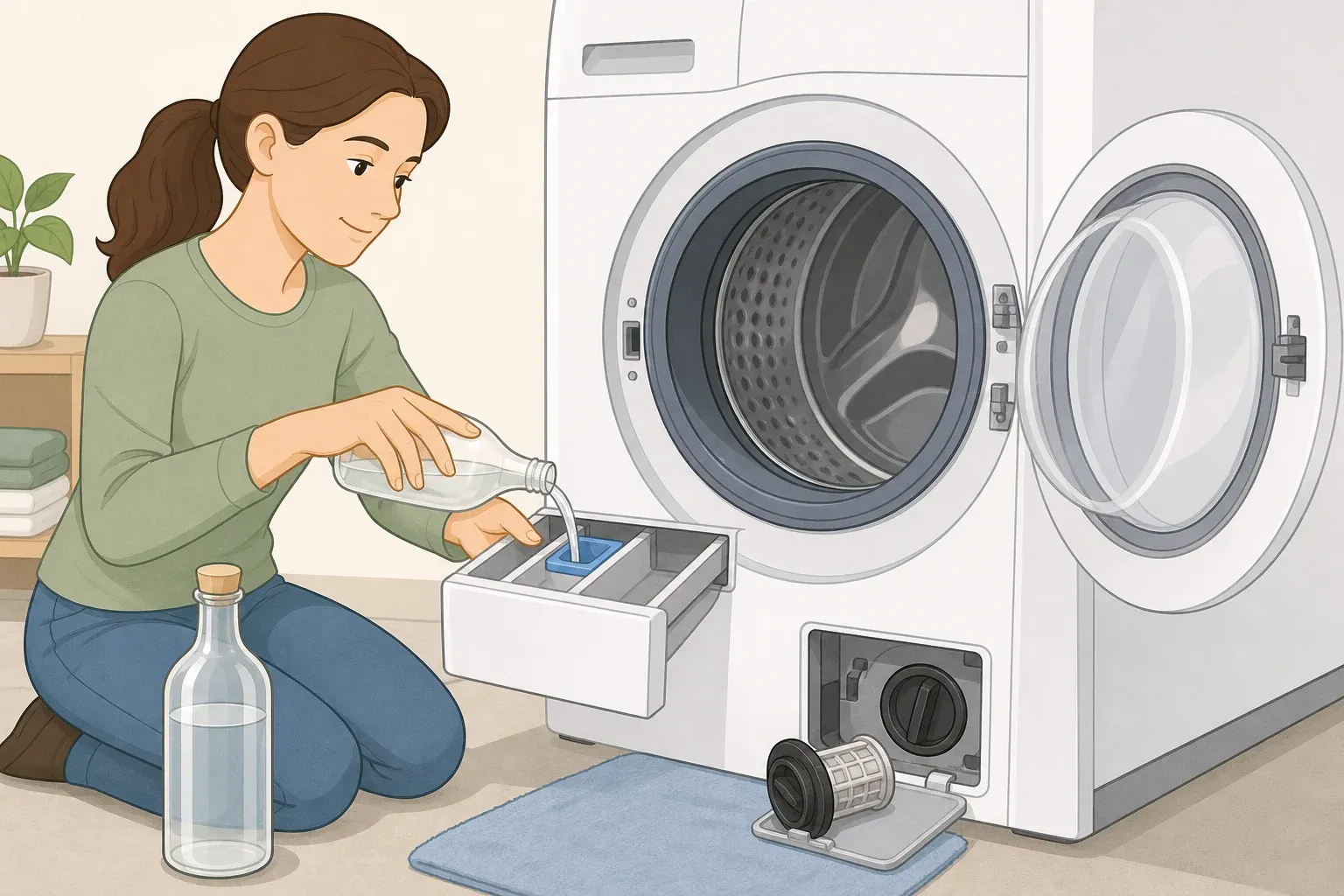
For every Group 2 device smart washer, dryer, dishwasher, oven, range, or any other connected appliance that won't serve you while you're away:
Find the WiFi button or network settings on the appliance's control panel. If it's not obvious, check the manual or the manufacturer's support page.
Confirm whether the WiFi radio is currently active.
If it is, disable it.
For smart TVs and streaming devices not in use during the trip: unplug them. A smart TV maintains a continuous network connection and gains nothing from staying on while the house is empty. Streaming sticks and media boxes take seconds to pull from the wall.
Why this step matters more when you're specifically away:
A connected appliance running software that no longer receives security updates can be exploited to probe the rest of your home network, reaching phones, computers, and financial accounts, with no one present to notice, according to Consumer Reports. A compromised appliance can also be quietly recruited into a botnet used to attack unrelated systems.
The risk is hard to evaluate because most manufacturers don't disclose how long they support their products' software. Only 14 percent of 21 smart appliance brands provided a specific support timeline in Consumer Reports' own review; the FTC found a similarly low rate, 11 percent, across 184 connected devices, as Consumer Reports reported in early 2025.
Most people expect their appliances to outlast their software support by years. Americans who had purchased large appliances in the past two years expected them to last an average of ten years, per a Consumer Reports survey of 2,160 U.S. adults conducted in the summer of 2023. Even Fisher & Paykel and GE, among the most transparent brands, only commit to software support for five years from product launch or two years from purchase, whichever is longer. The hardware lifespan and the software support window are not the same thing.
Gotcha: If you're uncertain whether a device's support has lapsed, treat it as if it has. The practical action is the same either way: disable WiFi until you've confirmed its status.
Step 3: Departure day — what to unplug before going on vacation
Once the network decisions are made, the conventional part is straightforward. Walk through the house and unplug:
Countertop kitchen appliances: coffee makers, toasters, toaster ovens, blenders, air fryers, stand mixers
Hair tools: straighteners, curling irons, hair dryers
Desktop and bedside chargers not traveling with you
Bedside and floor lamps not on a smart system
Game consoles
Desktop computers not covered by the guest network setup
None of these needs to be plugged in. They draw standby power, carry a small but nonzero electrical fault risk, and provide no benefit to an empty house.
What you've set up and what comes next
After the one-time setup and the departure routine, the situation looks like this: essential smart devices are online but isolated on a guest network, unused smart appliances have their WiFi radios off, and everything with no remote purpose is physically unplugged.
One task worth doing after you return: look up the software support status for any smart appliance you own. Find the model number (usually on a label inside the door, on the back, or under the unit), go to the manufacturer's support page, and search for firmware update history or end-of-support notices. If the information isn't there, that absence is its own answer.
A check on this problem is theoretically in progress. The FCC's Cyber Trust Mark is designed as a security label for connected devices, but the program is voluntary and doesn't require manufacturers to disclose software support timelines, so its presence won't confirm how long your specific device will receive updates, as Consumer Reports noted in late 2024. Consumer pressure exists: 68 percent of Americans believe disclosure of software support duration should be required by law, according to a Consumer Reports survey of 2,130 Americans conducted in December 2024. The requirement doesn't exist yet.
Until it does, the working assumption is this: you probably don't know your connected appliance's support status, and neither does anyone else in your house. Check what you can, disconnect what you're not actively using, and leave knowing the network you've left behind is at least divided.


Comments
Be the first, drop a comment!